-1.png?width=152&height=287&name=Genesis%202.0%20Tilt%20view%20(1)-1.png)
Revision History
|
Ver |
Date |
Revise contents |
Reviser |
|
A00 |
2022.11.23 | New Edition | Tom |
| A01 | 2022.12.16 | Add LCD Introduction. | Tom |
| A02 | 2023.02.09 | Add 2 Inverter Dial Codes. | Mike |
| A03 | 2023.05.26 | Update the chapter of WIFI Configuration | Mike |
| A04 | 2023.07.18 | Add the Pin order select box to the accessory list and its usage to chapter 3.6. | Aaron |
| A05 | 2024.01.22 | Add inverter brand, change port define and update WIFI configuration | Doreen |
| A06 | 2024.09.23 |
|
Janice
|
| A07 | 2024.10.22 |
|
Janice |
Safety Instructions
For safe installation and operation, it is the responsibility of the
installer and user to thoroughly review this document, including
all safety warnings and precautions, before beginning installation
or using the equipment.
1.0 General Safety Precautions
- Read and Retain Manual: Thoroughly read this manual before working on the
product. Keep it accessible for future reference. - Compliance with Electrical Standards: Ensure all installations and operations
comply with local electrical codes and regulations. - Electrical Compatibility: Verify that the product's electrical specifications match those of the connected equipment.
- Battery Handling: Do not open or disassemble the battery module. The electrolyte is highly corrosive. Under normal conditions, electrolyte contact is prevented. If the casing is damaged, avoid contact with exposed electrolytes or powder.
- Electrostatic Protection: Protect the product from electrostatic discharge; the internal electronics are sensitive.
- Handling Precautions: Do not place items or tools on the product. Prevent damage from dropping, impact, deformation, or cutting.
- Liquid Exposure: Keep the product away from liquids. If liquid spills on it, do not touch it due to the risk of electric shock.
- Chemical Exposure: Avoid exposing the product to flammable substances, harsh chemicals, or vapors.
- No Modifications or Painting: Do not paint any components or modify the product, especially the battery or cells.
- Foreign Objects: Do not insert any objects into the product other than the designated connections specified in this manual.
- Warranty Exclusions: Warranty is void for any direct or indirect damage resulting from failure to comply with the above instructions.
- Battery Disposal: Do not dispose of batteries with regular household or industrial waste.
- Battery Recycling: Batteries marked with a recycling symbol must be handled by a certified recycling facility. Alternatively, they may be returned to the manufacturer as per the agreement.
1.1 Handling, Transportation and Storage Precautions
The batteries are classified under UN3480 and must be transported in accordance with the
packaging requirements specified in Special Provision 230 of the IMDG Code (40-20 Edition)
for maritime transport and P965, Section IA for air transport (SOC < 30%). The original
packaging meets these regulatory requirements.
- Before moving or servicing the product, ensure it is fully powered off and
disconnected from the power source. - If the product needs to be moved or repaired, the power must be cut off and
completely shut down. - Transport the product in its original packaging or equivalent. The battery
the module must remain upright. - The modules are heavy; ensure secure mounting and use proper handling
transportation equipment. - When lifting the packaged product, use soft slings to prevent damage.
- Avoid standing directly beneath the product during hoisting.
- Protect the product from severe impacts, compression, direct sunlight, and rain during transport.
- Store the product in a cool, dry environment, free from dust, dirt, and debris.
- Keep the product out of the reach of children and animals.
- Do not store the battery below 50% State of Charge (SOC) for more than one
month, as this may cause permanent damage and void the warranty. - For long-term storage, recharge the battery module every 3 months, maintaining an SOC of at least 90%.
1.2 Installation and Safety Guidelines
- Avoid installing the product in airtight enclosures or areas without ventilation.
- Do not install the product in living or sleeping areas, except within utility closets or
storage spaces. - In garage or carport installations, ensure sufficient clearance from vehicles.
- Always wear protective eyewear, clothing, and insulated gloves when handling the
battery. - Use insulated tools and avoid wearing metallic items (e.g., watches, bracelets).
- Turn off all relevant circuit breakers before and during installation to prevent electric
shock. - Do not connect AC conductors or photovoltaic conductors directly to the battery
pack—connect only to the inverter. - Ensure correct wiring; verify polarity and avoid short circuits with external devices.
- Incorrect wiring or over-voltages can damage the battery pack and may cause fire
hazards. - Ensure the product is properly grounded, following local regulations. Recommended
grounding resistance: less than 1Ω. - Handle with care; Li-ion batteries are sensitive to mechanical shocks.
1.3 System Startup and Operating Guidelines
- Before starting the system, verify that all connection terminals are secure and properly
tightened. - If a circuit breaker is installed between the battery and inverter, ensure it is switched
on before powering up the battery. - Do not open the product or connect/disconnect any wires while the system is
operational to avoid electric shock. - Recharge the battery within 12 hours after it has been fully discharged.
- The default discharge temperature range is -4℉ (-20℃) to 122℉ (50℃). Frequent
discharging outside this range may degrade battery performance and lifespan. - The default charging temperature range is 32℉ (0℃) to 122℉ (50℃). Charging
outside this range may reduce battery performance and lifespan. - Do not charge or discharge a damaged battery.
- If any abnormal conditions are observed, contact the supplier within 24 hours.
1.4 Damaged Battery Handling and Emergency Guidelines
- Handling of Damaged Batteries: Damaged batteries are hazardous and should not be
used. If damage is suspected, place the battery pack in its original container and return
it to an authorized dealer. - Wet or Submerged Batteries: Do not touch or allow access to a battery pack that is
wet or submerged. Contact an authorized dealer for technical support immediately. - Fire Safety: In case of fire, use a carbon dioxide, FM-200, or ABC dry powder
extinguisher. If possible, relocate the battery pack to a safe area before it ignites. - Exposure to Internal Materials:
- Inhalation: Leave the contaminated area immediately and seek medical
assistance. - Eye Contact: Rinse eyes with running water for 15 minutes and seek medical
assistance. - Skin Contact: Wash the affected area thoroughly with soap and seek medical
assistance. - Ingestion: Induce vomiting and seek medical attention immediately
- Inhalation: Leave the contaminated area immediately and seek medical
1.5 Installer Qualifications and Responsibilities:
This installation guide is intended for use by skilled personnel only. "Skilled personnel" refers
to trained and certified electricians or installers who possess the following qualifications:
- Understanding of battery specifications and characteristics.
- Experience with the installation of electrical devices.
- Proficiency in using torque tools and screwdrivers for various screw types.
- Familiarity with local installation standards and regulations.
- Possession of an electrical license for battery installation, as required by local or
national regulations. - Awareness of the risks and hazards associated with electrical installations, as well as
knowledge of appropriate safety measures. - Adherence to this installation guide, including all specified safety precautions and
industry best practices.
Note: For safety purposes, installers must thoroughly review this guide and all safety
warnings before starting the installation process.
2.0 Product Overview: Genesis 2.0 Series
The Genesis 2.0 series is an advanced lithium iron phosphate (LiFePO₄) energy storage
solution developed by e-On, designed to provide reliable power for a wide range of household
appliances and equipment.
Key Features:
- Modular Design: The system includes a main controller and several battery modules,
each equipped with an integrated Battery Management System (BMS). - BMS Capabilities: The built-in BMS monitors critical cell information such as
voltage, current, and temperature, ensuring optimal performance and safety. - DC-DC Converter: Each battery module has a DC-DC converter that manages the
balancing of current between modules during parallel operation. - Scalable Capacity: Multiple battery stacks can be connected in parallel, allowing for
capacity and power expansion to meet higher energy demands and extend backup
duration.
The Genesis 2.0 series offers a flexible and scalable energy storage solution, ideal for
supporting varying household power requirements.
2.1 Genesis 2.0 Series Features:
- Modular Expansion: With an integrated DC-DC converter, users can easily add or
replace battery modules without needing to consider the quality or State of Charge
(SOC) of older modules. - Environmentally Friendly: The entire product is non-toxic, pollution-free, and
designed with eco-friendly materials. - Safe and Long-Lasting Chemistry: The battery uses lithium iron phosphate
(LiFePO₄), known for its safety, stability, and long cycle life. - Compact Design: The product features a small, plug-and-play embedded design for
easy installation and maintenance. - Wide Operating Temperature: The system operates efficiently in a temperature
range of -4℉ to 122℉ (-20℃ to 50℃), ensuring excellent discharge performance. - Battery Protection: The integrated Battery Management System (BMS) includes
protections against over-discharge, over-charge, over-current, and extreme
temperatures. - Low Self-Discharge: The battery has minimal self-discharge and can go up to 3
months without charging. It features no memory effect, ensuring excellent shallow
charge/discharge performance. - Smart Energy Management: The system automatically manages the battery’s charge
and discharge states, optimizing energy use and reducing energy costs through various
control strategies.
1.4 Specifications
2.2.1 Specification EBR-EM51100-XTL01 (-H) (16 series cells)
| Item | EBR-XL010021 | EBR-XL015031 | EBR-XL02004 | EBR-XL025051 | EBR-XL030061 |
| Controller Model | EBR-MC300-XTL01 | ||||
| Battery Module Model | EBR-EM48100-XTL01 (-H) H= Internal Heat Strip | ||||
| Battery Chemistry | LiFePO4 | ||||
| Module Quantity | 2 | 3 | 4 | 5 | 6 |
| Nominal Energy (kWh) | 9.6 | 14.4 | 19.2 | 24 | 28.8 |
| Nominal Capacity (Ah) | 200 | 300 | 400 | 500 | 600 |
| Max. Charging/Discharging Current (A) |
190 | 285 | 300 | 300 | 300 |
| Nominal Voltage (V) |
51.2 |
||||
| Recommend Charging Voltage (V) | 56.8 | ||||
| Max. Charging Voltage (V) | 58.4 | ||||
| Discharge Cut-off Voltage (V) | 43.2 | ||||
| Heating Film Resistance(Ω) | 16 per module (-H model only) | ||||
| Heating Start Temperature (℉/℃) |
41/5 (-H model only) | ||||
| Operation Temperature (℉/℃) | Discharge: -4~122 / -20~50 Charge: 32~122 / 0~50 | ||||
| Safety Function | Over-charge, Over-discharge, Over-current, Low/High-temperature, Short-circuit Protections | ||||
| Parallel Capacity | Maximum 15 Clusters | ||||
| Communication | RS485/CAN/Wi-Fi | ||||
| Weight (lbs/kg)(Approx.) | 311/141 | 428/194 | 545/247 | 661/300 | 778/353 |
| Physical Dimensions (inches/mm)(WxDxH) |
25.0x10.5x31 635x268x795 |
25.0x10.5x40 635x268x1023 |
25.0x10.5x49 635x268x1250 |
25.0x10.5x58 635x268x1478 |
25.0x10.5x67 635x268x1705 |
| Level of Protection |
IP65 |
||||
2.2.2 Specification EBR-EM48100-XTL01 (-H) (15 series cells)
| Item |
EBR-XL009021 |
EBR-XL014031 |
EBR-XL019041 |
EBR-XL024051 |
EBR-XL028061 |
|
Controller Model |
EBR-MC300-XTL01 | ||||
|
Battery Module Model |
EBR-EM48100-XTL01 (-H) H= Internal Heat Strip | ||||
|
Battery Chemistry |
LiFePO4 | ||||
| Module Quantity | 2 | 3 | 4 | 5 | 6 |
| Nominal Energy (kWh) | 9.6 | 14.4 | 19.2 | 24 | 28.8 |
| Nominal Capacity (Ah) | 200 | 300 | 400 | 500 | 600 |
| Max. Charging/Discharging Current (A) | 190 | 285 | 300 | 300 | 300 |
| Nominal Voltage (V) | 48 | ||||
| Recommend Charging Voltage (V) | 53.25 | ||||
| Max. Charging Voltage (V) | 54.75 | ||||
| Discharge Cut-off Voltage (V) | 40.5 | ||||
| Heating Film Resistance(Ω) | 16 per module (-H model only) | ||||
|
Heating Start Temperature (℉/℃) |
41/5 (-H model only) | ||||
| Operation Temperature (℉/℃) |
Discharge: -4~122 / -20~50 Charge: 32~122 / 0~50 |
||||
| Safety Function |
Over-Charge, Over-Discharge, Over-Current, Low/High-Temperature, Short-Circuit Protection |
||||
| Parallel Capacity | Maximum 15 Clusters | ||||
| Communication | RS485/CAN/Wi-Fi | ||||
| Weight (lbs./kg) (Approx.) | 308/139.5 | 424/192.5 | 541/245.5 | 658/298.5 | 775/351.5 |
| Physical Dimensions (inches/mm) (WxDxH) | 25.0x10.5x31 635x268x795 |
25.0x10.5x40 635x268x1023 |
25.0x10.5x49 635x268x1250 |
25.0x10.5x58 635*268*1478 |
25.0x10.5x67 635x2681705 |
| Level of Protection | IP65 | ||||
2.3 Interface Information
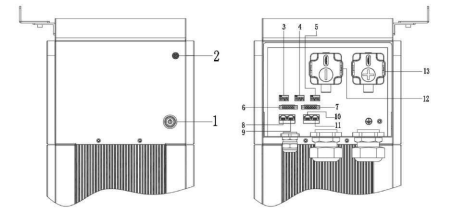 Figure 2.3.1. Interface definition of Controller module
| C | Instructions | No. | Instructions |
| 1 | On/Off | 8 | Inverter1 Communication Port (RJ45) |
| 2 | WIFI Antenna Port | 9 | Inverter2 Communication Port (RJ45) |
| 3 | Inverter Dial Switch | 10 | Parallel Communication Port A |
| 4 | Address Dial Switch | 11 | Parallel Communication Port B |
| 5 | Function Dial Switch | 12 | Power Negative |
| 6 | Inverter Communication Port (connector) | 13 | Power Positive |
| 7 | Debug |
2.3.1 Powering On/Off the System:
- To Power On: Press the button once.
- To Power Off: Press the button again.
2.3.2 Connecting the Wi-Fi Antenna:
- Step 1: Connect the Wi-Fi antenna to the designated port on the system. • Step 2: This will enable the APP and web connectivity for remote monitoring and control.
2.3.3 Inverter Selection Dial Switch Code 0-26 Configuration:
• The codes 0-26 on the dial switch are used to match the system with the appropriate inverter brand. Below is the table showing the definitions for each code:
|
Code |
Dial Switch Position | Brand | Logo |
| 0 |  |
e-On Flex |  |
| 1 |  |
(Reserved) | |
| 2 |  |
Schneider Gateway |  |
| 3 |  |
Sol-Ark |  |
| 4 |  |
Solis_LV |  |
| 6 |  |
Studer_Xtender |  |
| 7 |  |
Victron_color control |  |
| 8 |  |
SMA_LV |  |
| 9 |  |
Sermatec_LV |  |
| 10 |  |
Sofar_LV |  |
| 11 |  |
DEYE |  |
| 12 |  |
Growatt_SPF |  |
| 13 |  |
Growatt_SPH&SPA |  |
| 14 |  |
Must |  |
| 15 |  |
MEGAREVO |  |
| 16 |  |
SAJ |  |
| 17 |  |
Aiswei |  |
| 18 |  |
Phocos |  |
| 22 |  |
Voltronic Power |  |
| 23 |  |
Fronius |  |
| 24 |  |
Afore |  |
| 25 |  |
Lux Power |  |
| 26 |  |
CHISAGE ESS |  |
Code 63 is used for special function, defined as below:
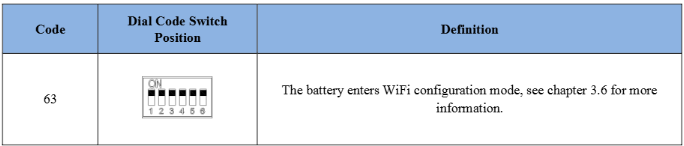
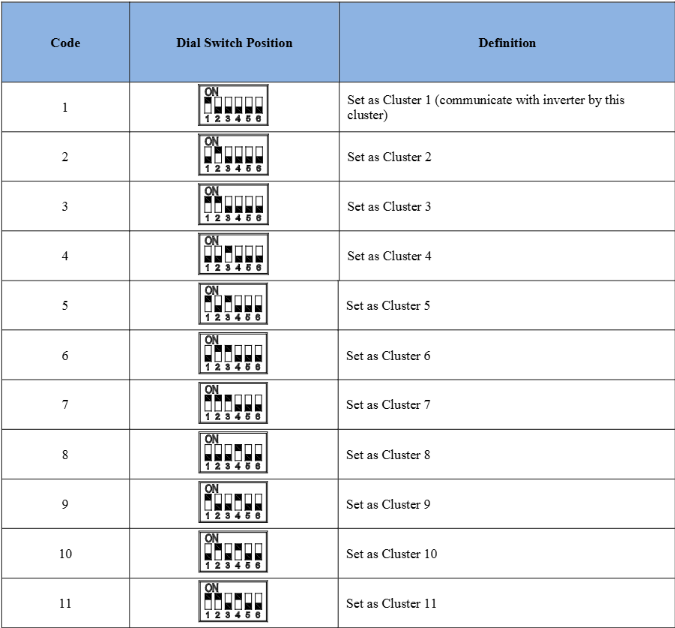
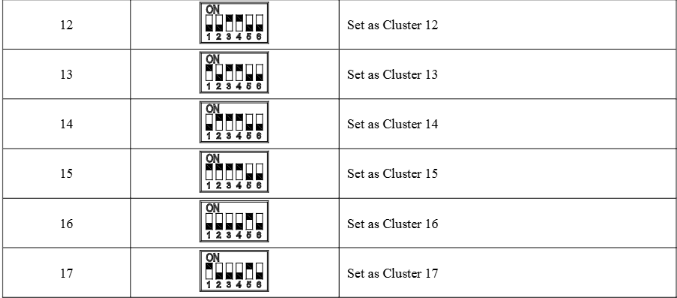
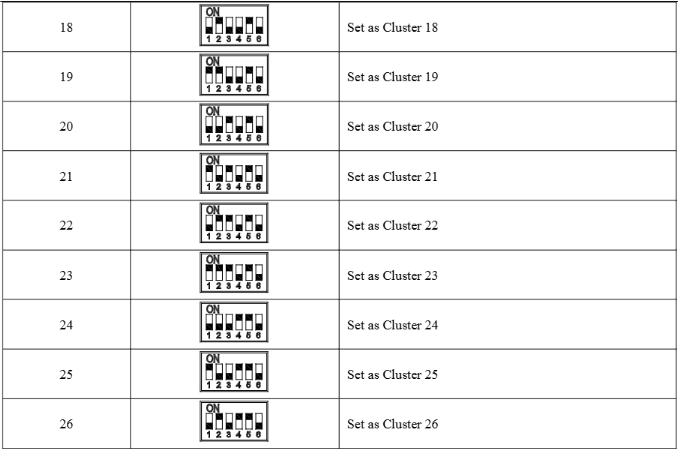
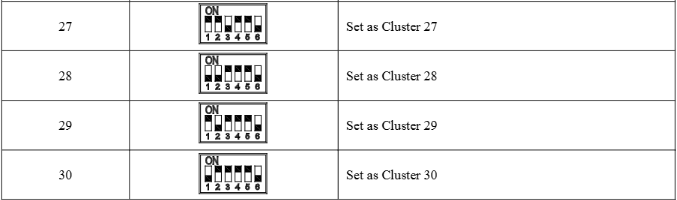
2.3.4 Serial Address Dial Switch Configuration:
1. Setting the Address:
- Use the dial switch to assign an address to each master controller in the
system. - Turn on the system after setting the address to activate it, especially when
operating in parallel with other stack units
2. Single Stack System:
- For a system with only one stack unit, set the dial switch to Cluster 1.
3. Parallel Mode:
- When operating in parallel mode with multiple stack units, set the address
starting from 1 and increase the address number sequentially for each
additional stack unit. This ensures proper communication between the stack
units.
dialed for each stack unit to enable proper system communication and operation in parallel
mode.
2.3.5 Dial Switch for Communication Impedance Matching:
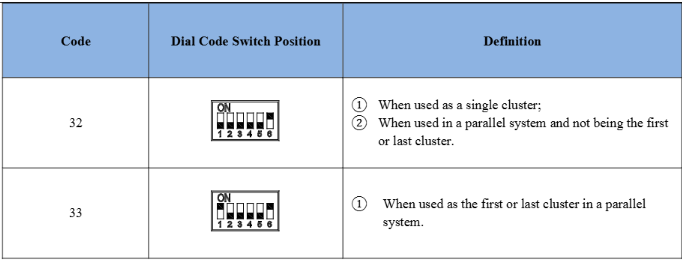
1. Purpose:
- Use the dial switch to match the communication impedance, ensuring optimal
and enhanced communication between the master control unit and the battery.
This setting is crucial for communication between paralleled clusters.
2. Setting Guidelines:
-
Adjust the dial switch to the recommended position (based on the system's
specifications) to ensure proper impedance matching. -
This setting optimizes signal integrity and facilitates reliable communication
between stacked or paralleled units.
Ensure the dial switch is correctly configured for communication impedance to maintain
seamless operation and communication between the master controller and battery modules
across all clusters.
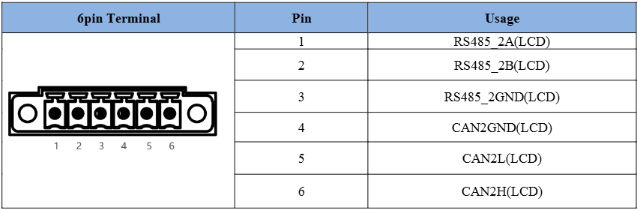
2.3.6 Inverter Communication Port (connector)
Terminal Type: 6-Pin Terminal Block
1. Usage:
-
This 6-pin terminal block is reserved for direct connection with the inverter
and serves the same function as the RJ45 port (as described in the chapter
"INVERTER1 Port (RJ45)").
2. Functionality:
-
Only one of these two connection options (6-pin terminal block or RJ45 port)
will be used to connect the inverter. -
NOTE: Ensure that either the 6-pin terminal block or the RJ45 port is
used for the inverter connection, but not both simultaneously.
Defined as below:
2.3.7 Technical Debugging Port
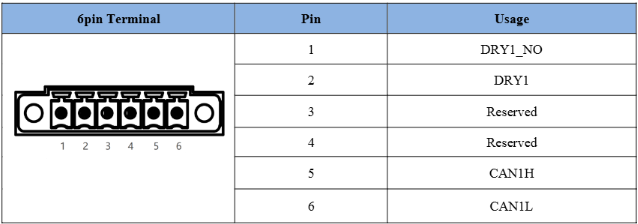
Terminal Type: 6-Pin Terminal Block
1. Usage:
- This 6-pin terminal block is reserved for technical debugging by authorized
personnel. It is not intended for general user connections or configuration. - This terminal block should only be used by qualified technicians for
maintenance, troubleshooting, or updates. Unauthorized use may result in
system malfunctions or void warranties.
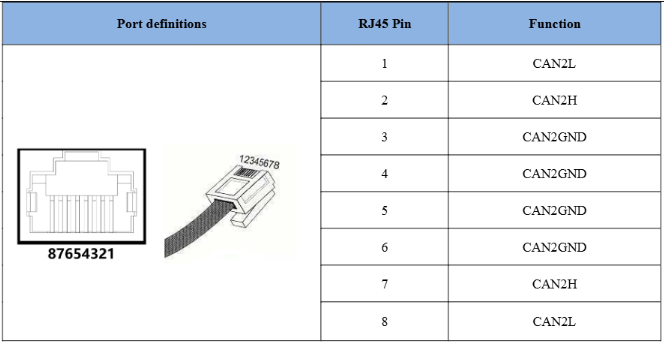
2.3.8 INVERTER1 Port (RJ45)
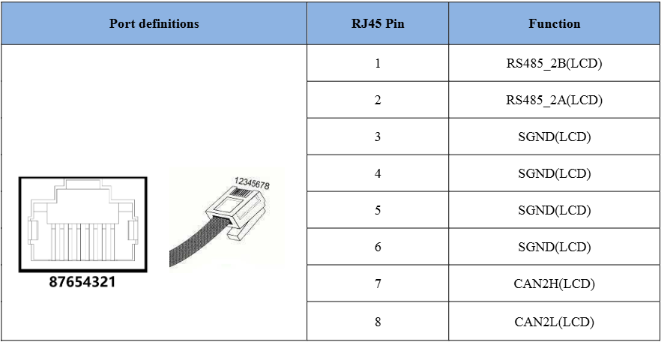
Terminal Type: RJ45
- Usage: The RJ45 port is used for communication with the inverter, PCS (Power
Conversion System), or other connected equipment. - Important:
- Cable Pinout: The installer must verify the correct cable pinout before
connecting the inverter to the battery to ensure proper communication.
Incorrect pinout may result in communication failure. - For detailed information regarding the inverter setup and technical matters,
please refer to the inverter user manual.
- Cable Pinout: The installer must verify the correct cable pinout before
2.3.9 INVERTER2 Port (RJ45)
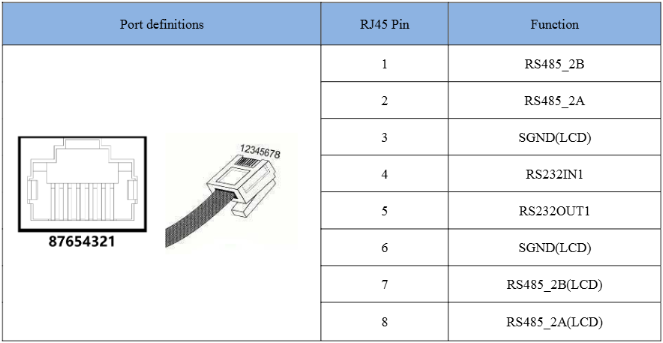
Terminal Type: RJ45
1. Usage:
- This RJ45 port is used for communication between the inverter's internet port
and the system, allowing the inverter's data to be uploaded to the platform for
monitoring and analysis.
Ensure that the RJ45 cable is properly connected to facilitate seamless data transmission from
the inverter to the platform.
2.3.10 Parallel Communication Port A & B
Terminal Type: RJ45 (x2)
1. Usage:
- Link A & Link B are parallel communication ports with the same definition.
- When multiple clusters are connected in parallel, use these ports to link the
clusters one by one, ensuring communication between them.
2. Connection Setup:
- Link A: Connects the first cluster to the next cluster in the parallel setup.
- Link B: Functions the same as Link A, providing redundancy and reliability
in communication between clusters.
Ensure that each cluster is properly connected via the Link A or Link B ports, depending on
the system configuration, to ensure smooth communication between the units in the parallel
setup.
2.3.11 Power Negative
Terminal Type: Terminal for 70 mm² Negative Power Cable
1. Usage:
- This terminal is used to connect the inverter’s negative terminal to the
system.
Ensure the 70 mm² power cable is securely connected to this terminal and the inverter’s
negative terminal to establish a proper electrical connection.
2.3.12 Power Positive
Terminal Type: Terminal for 70 mm² Positive Power Cable
1. Usage:
- This terminal is used to connect the inverter’s positive terminal to the
system.
Ensure the 70 mm² power cable is securely connected to this terminal and the inverter’s
positive terminal to establish a proper electrical connection.
3 Installation and Usage
3.1 Safe Handling Guide
3.1.1 Familiar with the product
• Handling of the System:
o Be cautious when unpacking the system, as each module is heavy. Do
not lift them using a pole. Refer to the "Specifications" chapter for the
exact weight of the modules.
• Battery Awareness:
o The battery poles are located on the top and bottom sides of the
battery module. The design includes a fast-mount and foolproof
mechanism, so there's no need to identify the positive and negative
poles. However, extra care should be taken, especially when handling
the bottom pole, to ensure safe handling.
.
3.1.2 Precautions Before Installation
Important:
Before installation, be sure to thoroughly read the contents of the "Safety
Precautions" chapter, which outlines critical safety information for the installation
personnel. Adhering to these guidelines is essential for ensuring safe operation during
the installation process. Please pay close attention to all safety warnings and
precautions.
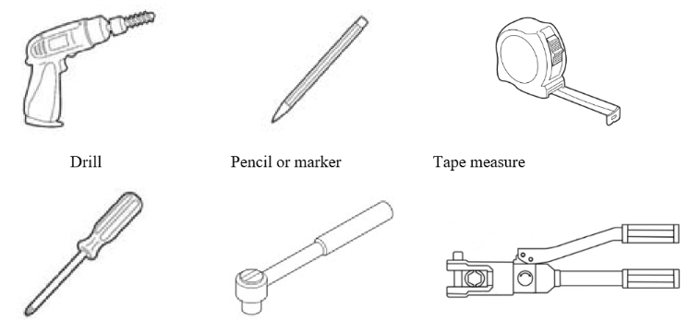
3.1.2 Tools
The following tools are required to install the product:

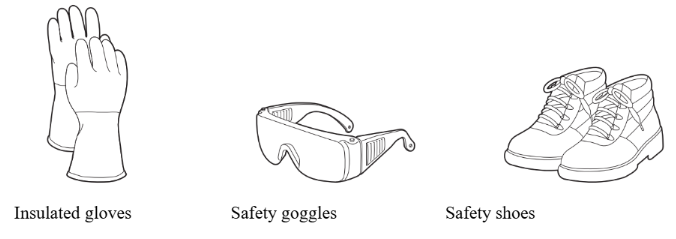
3.1.4 Safety Gear
It is recommended to wear the following safety gear when dealing with the product:
3.2
Safety goggles
System Premeasurement
Safety shoes
Clearance Requirements:
Ensure that there is adequate clearance around the battery for proper installation, cabling,
and airflow. The minimum clearance dimensions required for the system configuration
are provided below.
Cabling Guidelines:
The cables connecting the battery pack to the inverter should be installed according to the
specifications outlined in the inverter's installation guide manual. This ensures safe and
efficient operation.
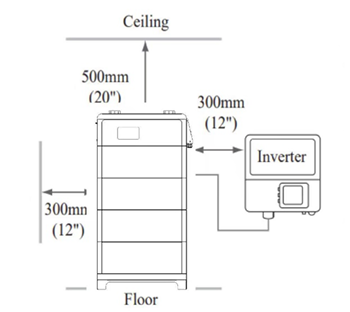
Figure 3.2.1. System clearance
3.3
Installation Location Requirements
Ensure that the installation location meets the following conditions:
• The floor is flat and level to support the system properly.
• The surface of the wall is smooth and perpendicular to the ground, capable of bearing
the system's weight.
• The area is completely waterproof to prevent moisture damage.
• The installation area avoids direct sunlight to prevent overheating.
• No flammable or explosive materials should be present in the area.
• Maintain a minimum distance of 80 inches (2 meters) from any heat source.
• The ambient temperature must be within the range of 32℉ (0°C) to 95℉ (35°C).
• The humidity should be maintained at a constant level.
• The area should have minimal dust and dirt to prevent contamination.
• Avoid installation in areas that are confined or have high salinity (e.g., coastal areas).
• Do not install outside directly or in open environments exposed to the elements.
• Ensure the installation area is inaccessible to children or pets for safety.
3.4
Product Unpacking and Inspection
• After receiving the product, please unpack the boxes carefully.
• Check the product and packing list to verify that all items are accounted for and in
good condition.
• If the product is damaged or parts are missing, please contact the local retailer
immediately for assistance.
Genesis 2.0 Series Packing List:
(1) Main controller Package Contents:
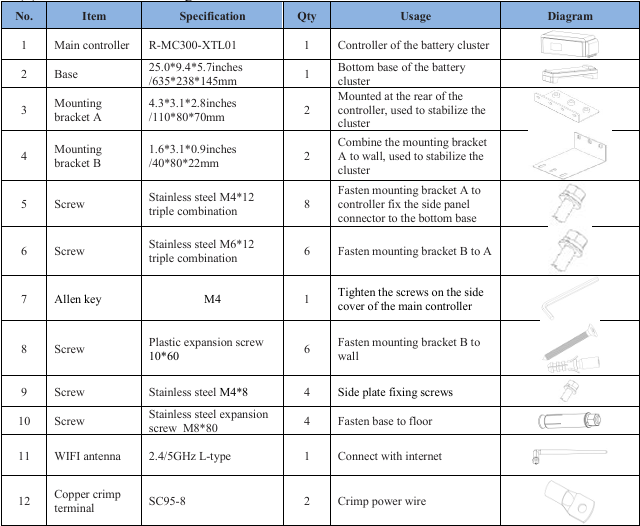
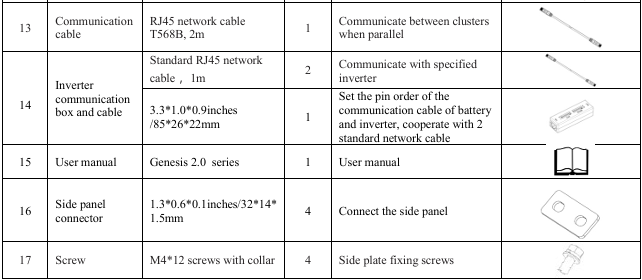
(2) Battery module Package Contents:
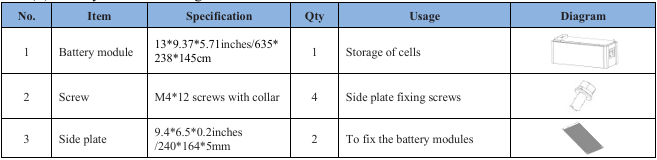
3.5
Installation
1) Preparation of master controller:
Fasten 2 mounting brackets (A) to the top back of the master controller.
• Ensure the brackets are positioned correctly and securely attached with screws.
• Tighten the screws properly to ensure the brackets are firmly in place before
proceeding with installation.
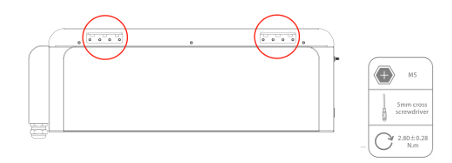
Figure 3.5.1. Fastened the mounting bracket A
2) Preparation of the Controller Module:
• Mounting Brackets Assembly:
Attach 2 mounting brackets (B) to the mounting bracket A.
o Note: Securely fasten and tighten the screws to ensure that the brackets are
properly attached and firmly in place.
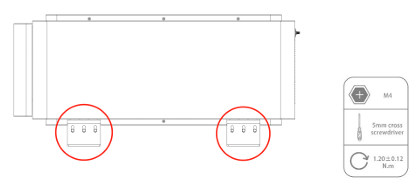
Figure 3.5.2. Fastened the mounting bracket B
3) Base Placement:
• Positioning the Base:
Place the base on the floor, ensuring it is at least 2.56 inches (65mm) away from the
wall.
o Note: This clearance is important for proper airflow and maintenance access.
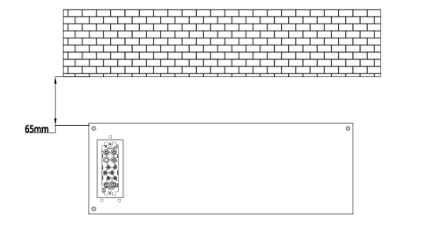
Figure 3.5.3. Put the base on the floor
4) Fastening the Base:
• Mounting the Base:
Secure the base by fastening the 4 mounting holes to the floor.
o Note: Ensure the base is firmly and securely attached to the floor to provide a
stable foundation for the system.
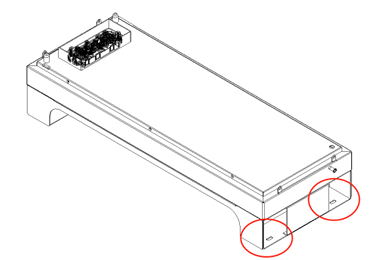
Figure 3.5.4. Mounting holes of the base
5) Stack the Battery Modules:
• Battery Module Stacking:
Carefully stack the battery modules in the desired configuration. Ensure they are
properly aligned and securely placed.
• Placing the Master Controller:
After stacking the battery modules, place the master controller unit on top of the
stack, ensuring it is securely positioned.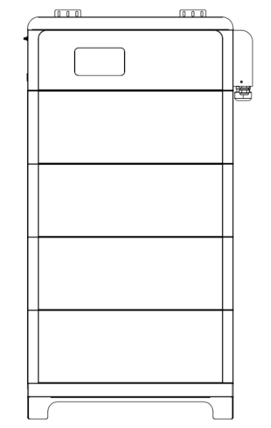
Figure 3.5.5. Stacked product (4 modules and 1 master controller unit)
6) Mounting Bracket B Installation:
• Fastening the Mounting Bracket B:
Securely fasten the 6 mounting holes of mounting bracket B to the wall.
o Note: Ensure that the bracket is firmly attached to the wall, providing stable
support for the system. Use appropriate anchors or screws based on the wall
material to ensure a secure installation.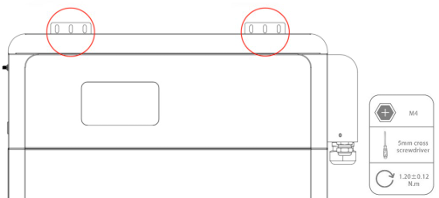
Figure 3.5.6. Mounting holes of the base
7) Installing the Side Panel Connector:
• Connector Installation:
Install the side panel connector between the bottom battery module and the base.
o Secure the connector by fastening 8 screws in each battery cluster to ensure a
firm and stable connection.
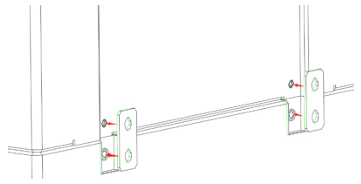
Figure 3.5.7. Fasten the side panel connector
8) Installing the Groove Plate:
• Groove Plate Installation:
Attach the groove plate to the side of each battery module.
o Ensure that the plate is properly aligned and securely fastened to the side of the
module. Tighten the screws to ensure the groove plate is firmly attached.
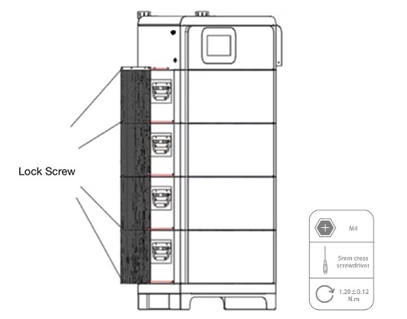
Figure 3.5.8. Installation Diagram of the mounting brackets
9) Ground Wire Connection:
• Connecting the Ground Wire:
Follow the diagram provided to connect the ground wire properly.
o Note: Ensure the ground wire is securely attached to the designated terminal,
following the correct wiring procedure as shown in the diagram to ensure
proper grounding and safety.
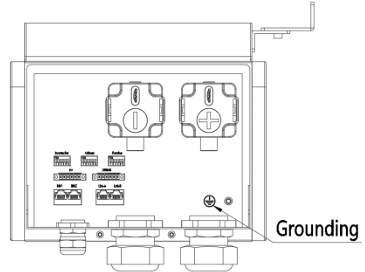
Figure 3.5.9. Ground wire connection
3.6
Connections of Cable and Power
1) Side Cover Removal:
• Carefully remove the side cover case by loosening any screws or fasteners holding
it in place.
• Note: Ensure that the cover is removed safely and without damaging any
components or connections. Keep the cover and screws in a secure location for
reassembly.
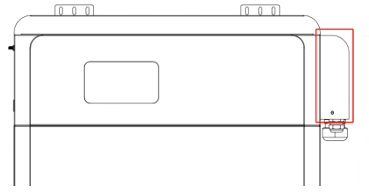
Figure 3.6.1. Removal position of the battery control module
3) Setting the Address and Function Dial Codes:
• Address Dial Code:
Set the Address dial code to 1.
• Function Dial Code:
Set the Function dial code to 32, ensuring it is in binary formation.
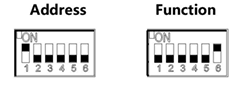
Figure 3.6.2. Dial code
4) Connecting the Battery to the Inverter:
• Remove the Covers:
Carefully remove the covers from the positive and negative electrodes of the battery.
• Connect the Electrodes:
o Connect the battery's positive electrode to the inverter's positive electrode.
o Connect the battery's negative electrode to the inverter's negative
electrode.
Note: Ensure that the connections are secure and properly tightened to prevent any loose
connections or potential safety hazards.
5) Connecting the CAN/RS485 Wire:
• Wire Connection:
o Connect the CAN/RS485 wire to the inverter port on the master controller.
o Connect the other end of the wire to the inverter's CAN/RS485 port.
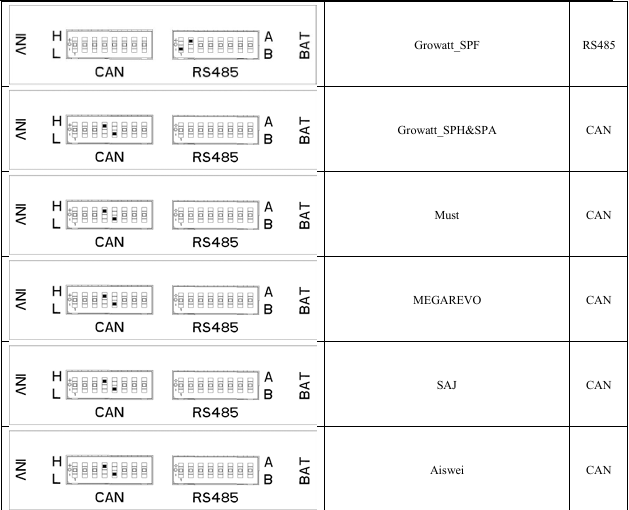
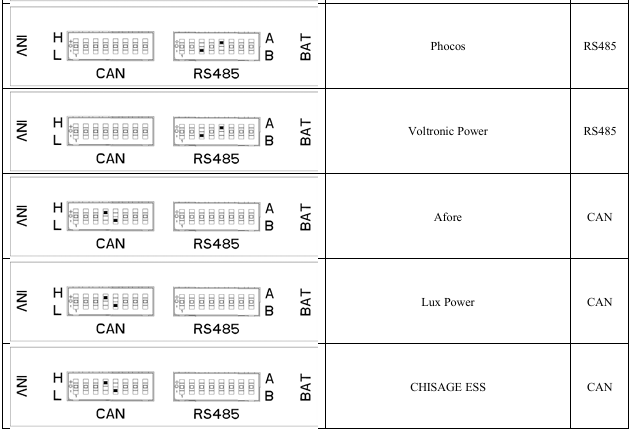
• Pin Order Selection (if applicable):
o If you are using the pin order select box, refer to the table below to set the
dial switch according to the inverter brand.
o If the inverter brand is not listed in the table, please consult the inverter
manual or reach out to an e-On engineer for assistance.
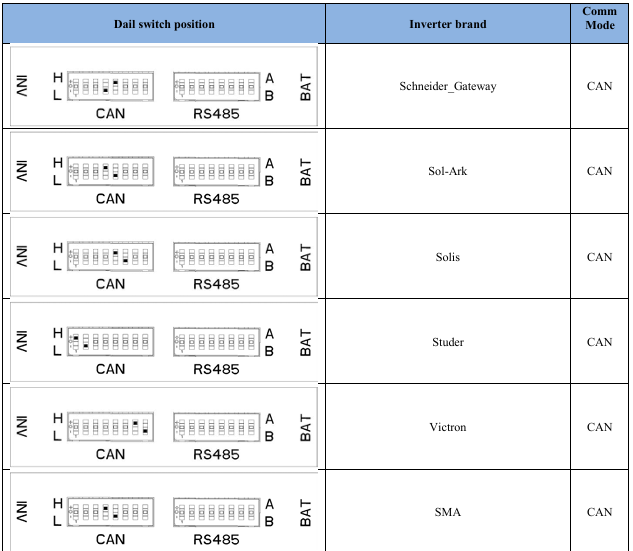
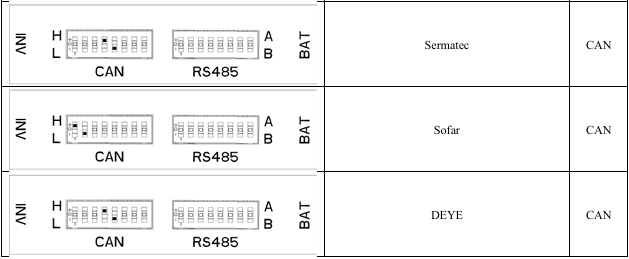
6) Power Cable Installation:
• Crossing the Power Cable:
o Carefully route the power cable through the black rubber sleeve.
o Ensure the cable is properly protected and does not have any sharp bends or
pressure points that could cause damage to the cable.
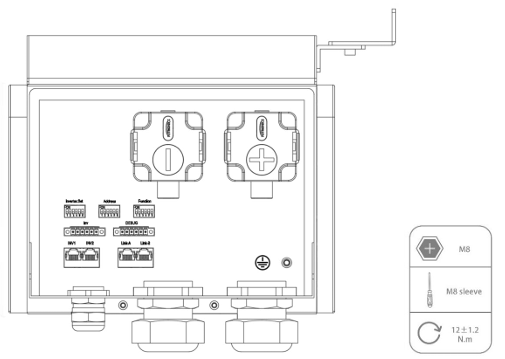
Figure 3.6.4. Power line connection
7) Powering On the System:
• Turning On the DC Breaker:
o Turn on the DC breaker of the inverter.
• Powering Up the System:
o Press the power button on the master controller.
• Wait for Confirmation:
o Wait for the beeper sound to occur, indicating the system has powered on.
o Once the beeper sounds, check the master controller display to confirm it
shows the correct number of battery modules that have been successfully
detected.
8) Setting the Inverter Dial Code:
• Adjust the Inverter Dial Code:
o Set the inverter dial code to match the corresponding code for your inverter
brand.
o Refer to the inverter manual or the provided table to ensure the correct code is
selected for proper communication between the inverter and master controller.
9) Verifying Battery Modules:
• Check the Screen:
o Verify that the master controller screen displays the correct number of
battery modules.
o Ensure there are no alarms or error messages indicating any issues.
o If an alarm is present, troubleshoot the system as per the user manual or
consult technical support.
3.7
.
Wi-Fi Configuration
Antenna Installation:
• Screw the Wi-Fi antenna into the antenna connection port securely.
• Ensure the antenna is tightly connected to avoid connection issues during Wi-Fi
configuration
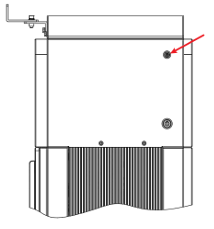
Figure 3.7.1. WIFI wiring position
Inverter Dial Code Setup for Wi-Fi Configuration:
• Set the Inverter Dial Code (INV SET):
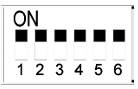
o Set the inverter dial code (INV SET) to 63, which in binary is 111111.
o Ensure that all six bits of the dial code are correctly configured to 111111
before proceeding with the Wi-Fi configuration
1) Download and install the e-On App:
• App Installation:
o Go to the Google Play Store or Apple App Store.
o Search for SMART ENERGY and download the E.on app.
o Install the app on your mobile device to begin configuration and monitoring of
the system.
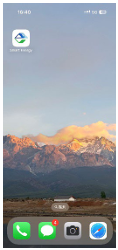
Figure 3.7.1. Install SMART ENERGY APP
2) Account Registration or Login:
• New Account Registration:
o If you are creating a new account, you can acquire the Register Code from
your installer.
o Enter the Register Code to complete your new account registration.
• Existing Account Login:
o If you already have an account (Installer Company level, Installer level, or End
User level), you can simply log in using your existing credentials.
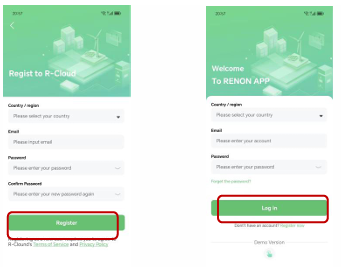
Figure 3.7.2. Start the APP & Create an account & Sign in
3) Wi-Fi Configuration via the E.on App:
• Navigate to the "Mine" Page:
o Open the E.on app and go to the "Mine" page.
• Access Network Configuration:
o Click on "Network Configuration".
• Select Bluetooth Model:
o Tap on "Bluetooth Model".
• Follow the Instructions:
Follow the on-screen instructions for Wi-Fi configuration to complete the
setup.
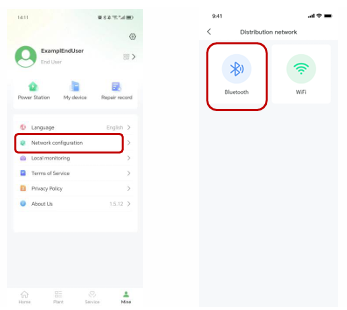
Figure 3.7.3. Bluetooth Network Setting
4) Connecting Mobile Phone to Master Controller via Bluetooth:
• Bluetooth Connection:
o Open the Bluetooth settings on your mobile phone and search for available
devices.
• Select the Correct Device:
o Find and select the Bluetooth connection with an SSID that matches the
master controller's serial number (SN).
• Establish Connection:
o Once connected, proceed with the next steps for network configuration or app
setup.
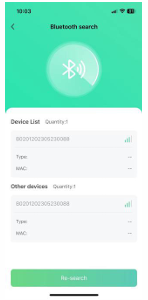
Figure 3.7.4. Connect Battery Bluetooth
5) Connecting the Master Controller to Your Private Wi-Fi:
• Enter Wi-Fi Details:
o In the app, enter the SSID and password of your private Wi-Fi network to
connect the master controller.
• Check the Run Light:
o Ensure that the Run light on the battery is blinking.
o If the Run light blinks slowly, this indicates that the battery has successfully
connected to the cloud.
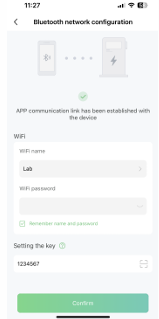
Figure 3.7.5. Connecting Private WIFI
6) Troubleshooting Bluetooth Connection:
• Unable to Find Bluetooth:
o If you cannot find the Bluetooth connection from the battery, go back to the
Distribution Network Interface in the app.
• Switch to Wi-Fi Model:
o Click on "Wi-Fi Model" to switch to Wi-Fi configuration mode.
• Follow the Instructions:
o Follow the on-screen instructions for network settings to complete the Wi-Fi
configuration process.
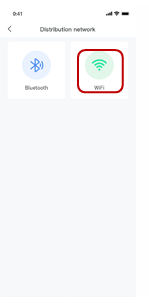
Figure 3.6.6. WIFI Network Setting
7) Enter Device Serial Number and Verification Code:
• Input the Serial Number:
o Enter the serial number of the device you want to configure for Wi-Fi.
• Enter the Verification Code:
o Input the device verification code provided for the device.
• Follow the remaining on-screen instructions to complete the Wi-Fi configuration
process.
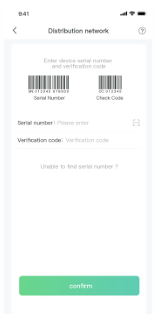
Figure 3.7.7. Input Device Serial Number and Verifcation Code
How to find the device verifcation code?
Step1: Click my device at page Mine.
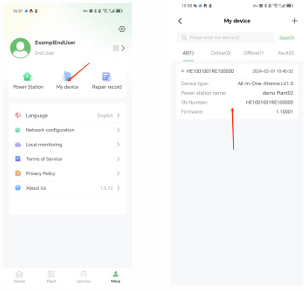
Figure 3.7.8. Find the Device
Step2: Click the device and click the “details”in the upper right corner of the interface, and then click “Device
key”. It will show the verifcation code .For example, “123456” shown in the picture.
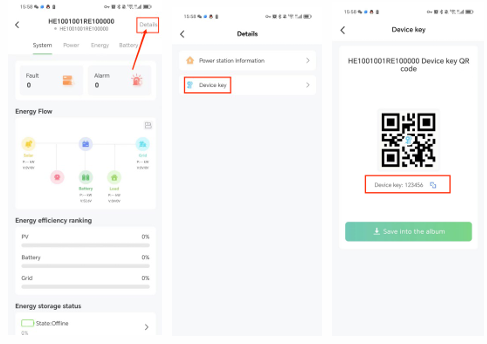
Figure 3.7.9. Find the Device Key
8) Connect Mobile Phone to Battery's Wi-Fi Hotspot:
• Find the Battery's Wi-Fi Hotspot:
o On your mobile phone, go to the Wi-Fi settings and search for the hotspot with
an SSID that matches the battery's serial number (SN).
• Connect to the Hotspot:
o Select the hotspot, and enter the password: 12345678.
• Establish the Connection:
o Once connected, proceed with the Wi-Fi configuration steps in the app.
9) Connect Master Controller to Your Private Wi-Fi:
• Enter Wi-Fi Details:
o In the app, input the SSID and password of your private Wi-Fi network to
connect the master controller.
• Check the Run Light:
o Ensure that the Run light on the battery is blinking.
o If the Run light blinks slowly, it indicates that the battery has successfully
connected to the cloud.
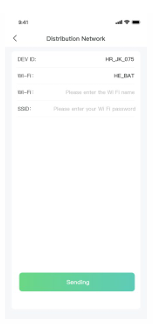
Figure 3.7.10. Connecting Private WIFI
10) Assign Products to Your Account:
• Contact Your Installer:
o Reach out to your installer and ask them to assign all of your products to your
account.
• Account Linking:
o The installer will link the products to your account, allowing you to monitor
and manage them through the app.
11) Create a Plant in the App:
• Go to the Main Page:
o Open the main page of the app.
• Create a Plant:
o Tap on the option to create a plant.
• Set Power Station Details:
o Name the power station.
o Select the power station type.
o Configure the grid price settings.
o Set up superior’s view (for higher-level access if required).
o Enter the power station address.
• Save the Configuration:
o Once all the details are entered, save the plant configuration.
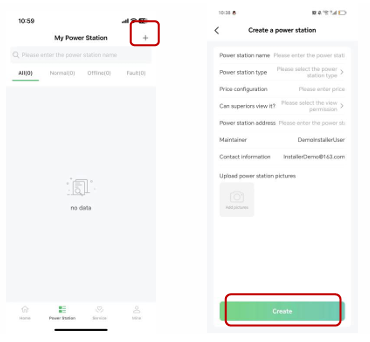
Figure 3.7.11. Create A New Plant
12) Add Device to Your Plant:
• Click Add Device:
o In the app, tap on the "Add Device" button to begin adding devices to your
plant.
• Select Products:
o Your products will be displayed by their serial numbers (SN). Select the
appropriate products for your plant.
• Confirm Selection:
o After selecting the correct products, confirm your choices to add them to your
plant configuration.
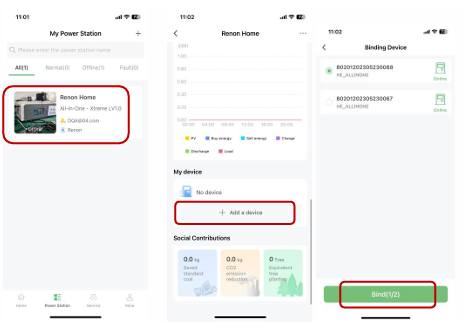
Figure 3.7.12. Manage Your Plant & Confirm Your Products
13) Manage Your Products:
• Manage via the App:
o You can now manage your products directly through the app.
• Manage via Website:
o For additional management options, you can also manage your products on the
website.
o Ask your installer for the site URL to access the web portal for product
management.
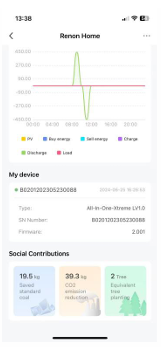
Figure 3.7.13. Manage Your Products
14) Monitor and Configure Your Product:
• Real-Time Monitoring:
o After connecting the product to Wi-Fi, you can monitor the following data in
real time on the network platform or mobile app:
Running status
Real-time power
Daily power consumption
Cumulative power
• Parameter Configuration:
o You can also configure product parameters directly from the platform or app.
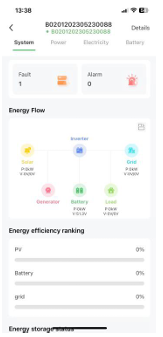
Figure 3.7.14. Monitoring Device
15) Set Inverter Dial Code:
• After Wi-Fi Configuration:
o Once the Wi-Fi configuration is complete, set the inverter dial code to match
the brand of your inverter.
• Reference:
o For the exact dial code, refer to chapter 2.3.6 Inverter Dial Switch for
detailed instructions.
3.8
Paralleled connection (Optional)
1) Plan the Distance Between Units:
• Ensure there is a minimum distance of 12 inches (300 mm) between the two
units.
• For optimal performance, a distance of 20 inches (500 mm) is recommended.
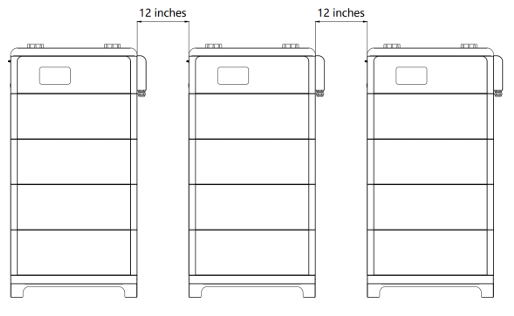
Figure 3.8.1. The distance between two adjacent equipment
2) Main Controller Battery Module Detection (Before Parallel Connection):
• Power On Each Main Controller:
o Press the power button of each main controller.
• Listen for Beep Sound:
o After pressing the power button, listen for a beep sound.
o The beep indicates that the main controller has successfully
distinguished the number of battery modules in that cluster.
• Ensure Success:
o Once the beep sound is heard, it means the main controller has
successfully detected and registered the battery modules for that
cluster.
3) System Power Off and Connection for Parallel Setup:
• Turn Off the System:
o Ensure the system is turned off before making any connections.
• Connect to Busbar:
o Connect the positive and negative electrodes of each cluster to the
busbar.
o The busbar must be capable of withstanding the maximum current
of the system.
• Set Main Controller Addresses:
o Set each main controller's address dial code sequentially as 1, 2, 3,
and so on, in order to establish proper communication between the
clusters.
4) Connecting Clusters for Parallel Communication:
• Use Parallel Communication Wire:
o Connect Link B of Cluster 1 to Link A of Cluster 2.
o Then, connect Link B of Cluster 2 to Link A of Cluster 3, and
continue this sequence for all subsequent clusters.
• Ensure Proper Link Connection:
o This method ensures the correct parallel communication between all
connected clusters.
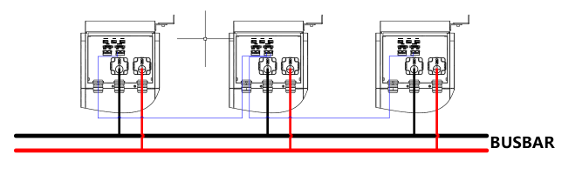
Figure 3.8.2. Diagram of the cables 'connection between two adjacent equipment
5) Setting Function Dial Codes for Clusters:
• First Cluster and Last Cluster:
o Set the function dial code to 33 for the first and last clusters in the system.
• Intermediate Clusters:
o Set the function dial code to 32 for all the other clusters between the first and
last cluster.
Note: This configuration ensures proper identification and communication for parallel
operation.
6) Powering On and Inverter Configuration for Parallel System:
• Step 1: Power On Clusters:
o Ensure all clusters are powered on, except for Cluster 1.
• Step 2: Power On Cluster 1:
o Once Cluster 1 is powered on, it will detect the number of clusters installed in
parallel.
• Step 3: Set Inverter Dial Code:
o After the detection is complete, set the inverter dial code of Cluster 1 to
match the corresponding inverter’s code.
• Step 4: Communication Connection:
o Only Cluster 1 needs to be connected to the inverter via the communication
wire for the system to function properly.
4 Monitoring Screen
4.1 LCD Screen Introduction
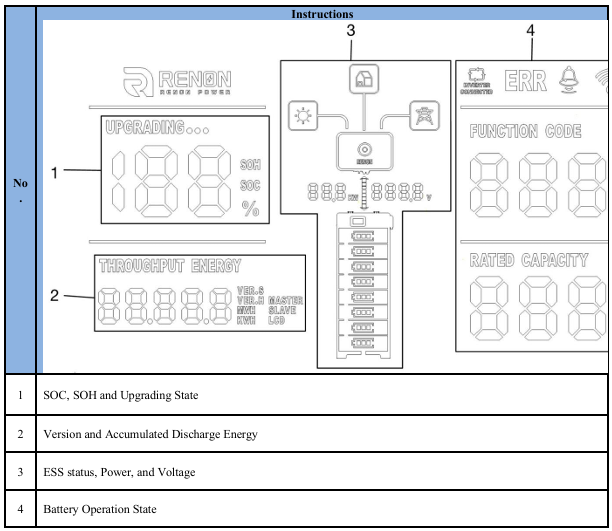
Figure 4.1 LCD Screen Introduction
4.2
SOC, SOH and Upgrading State
1. SOC (State of Charge):
• The percent number will display the current SOC when the SOC sign is
illuminated.
• The SOC sign will stay on for 60 seconds, showing the state of charge.
2. SOH (State of Health):
• The percent number will display the current SOH when the SOH sign is
blinking.
• The SOH sign will blink for 3 seconds, indicating the state of health.
3. Display Cycle:
• The SOC will be displayed for 60 seconds, followed by the SOH for 3 seconds,
repeating in a continuous cycle.
4. Upgrading State:
• Upgrade Progress:
o The "UPGRADING..." sign will appear on the display when the
battery is in the process of upgrading.
o The percentage displayed will indicate the progress of the upgrade.
4.3
4.4
Display of System Information
1. Software and Hardware Version:
• The display will show the version numbers for the LCD, master, and slave
components of the system.
2. Accumulated Discharged Energy:
• The accumulated discharged energy will be shown in kWh or MWh,
depending on the system's energy scale.
3. Display Cycle:
• Each part (software/hardware version and accumulated discharged energy) will
be shown for 3 seconds before switching to the next display.
Power, Voltage, and Battery Module Indicators
1. Current Power and Voltage:
o The display will show the current power and voltage of the entire battery
stack.
o The arrow between the power and voltage numbers indicates the charging
or discharging state of the system:
Upward arrow: Charging
Downward arrow: Discharging
2. Battery Modules Indicator:
o The Battery Modules sign will display the number of modules in the
system.
o Online modules: The indicator will stay on constantly.
o Offline modules: The indicator will blink periodically to show that they
are offline.
4.5
Battery Operation Status
1. Indication Codes:
1) Error (ERR) Code:
• When the Indication code displays “ERR”, it means that an error has
occurred in the system. This requires immediate attention to diagnose and
resolve the issue.
2) Warning ( ) Code:
• When the Indication code shows “ ”, it is a warning reminder,
indicating that a non-critical issue exists that should be monitored or
addressed but does not require immediate action.
3) Normal Operation:
• When there are no errors or warnings, the Indication code will display 0,
indicating that the system is operating normally without any issues.
2. Inverter Connection
1) The "INVERTER CONNECTION" sign indicates the status of the connection
between the inverter and the battery system.
2) When the connection is proper, the sign will be on, showing that the battery and
inverter are successfully connected and communicating.
3) If the connection is not established properly, the sign will be off, indicating a
connection issue that requires troubleshooting.
3. Wi-Fi Connection Symbol:
1) The Wi-Fi symbol will be on constantly when the Wi-Fi connection is stable and
the battery is successfully connected to the network.
2) The symbol will blink periodically if the Wi-Fi configured for the battery cannot
connect to the server, indicating a connection issue.
3) If the symbol is off, it means the battery is waiting for Wi-Fi configuration and has
not yet connected to a network.
4. Rated Capacity:
1) Rated Capacity refers to the nominal capacity of the current cluster. It
represents the total energy storage capability of the battery system under standard
conditions, typically expressed in kWh (kilowatt-hours) or MWh (megawatt
hours).
2) This value indicates the maximum energy the cluster can store and provide when
fully charged.
5 Troubleshooting & Maintenance
5.1 Regular maintenance
1. Inspect Battery Modules: Every 3 months, check the battery modules for any visible
damage or wear.
2. Monitor Operating Parameters: Every 3 months, verify that the operating
parameters of the battery are normal and ensure there is no abnormal heating during
operation.
3. Full Charge and Discharge: Perform a full charge and discharge cycle on the battery
system every 3 months to maintain the battery's health and performance.
4. Clean Battery Modules: Clean the surface of the battery modules with a dry rag once
a month to remove dust and debris.
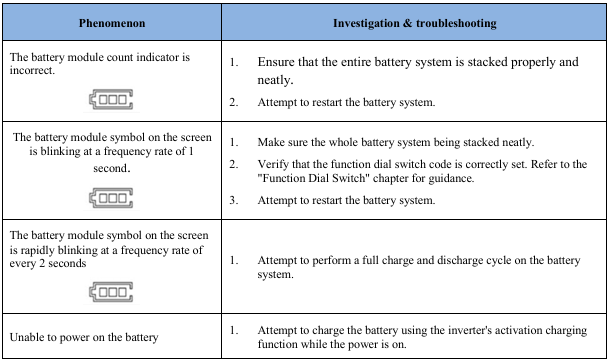
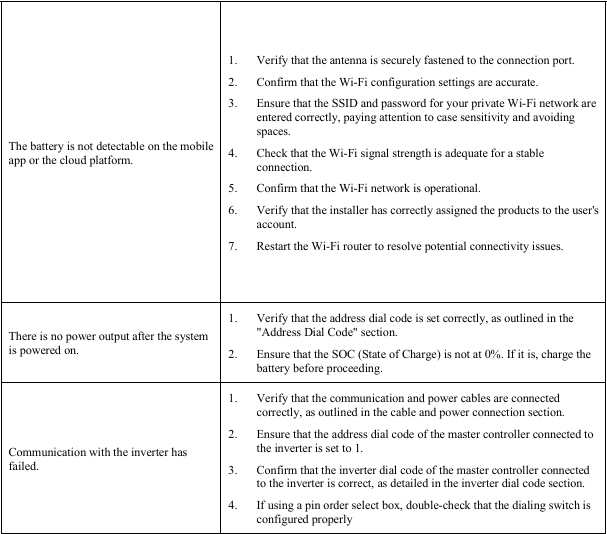
5.2 Troubleshooting
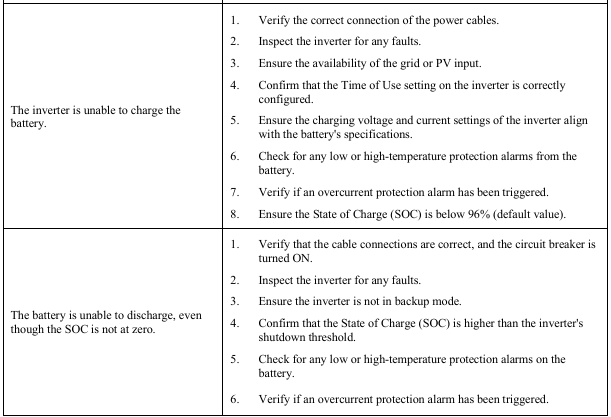
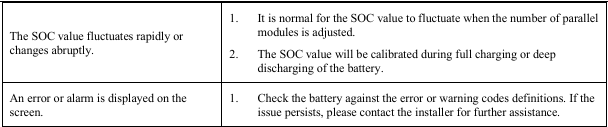
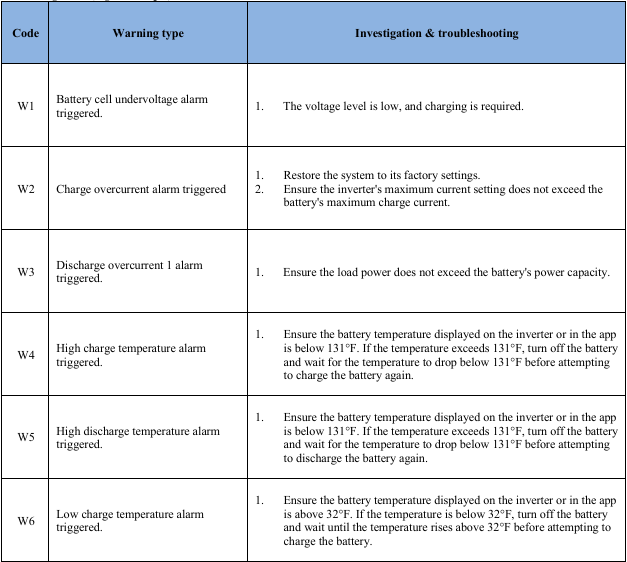
5.3 Warning Codes
Warning Code (Sign like “ ”)
”)